Online booking
Only on-demand trips can be booked online. Subscribe to ride notifications.
Set up account Check seat type Book a trip View upcoming trips Cancel a trip Change the password
Set up account
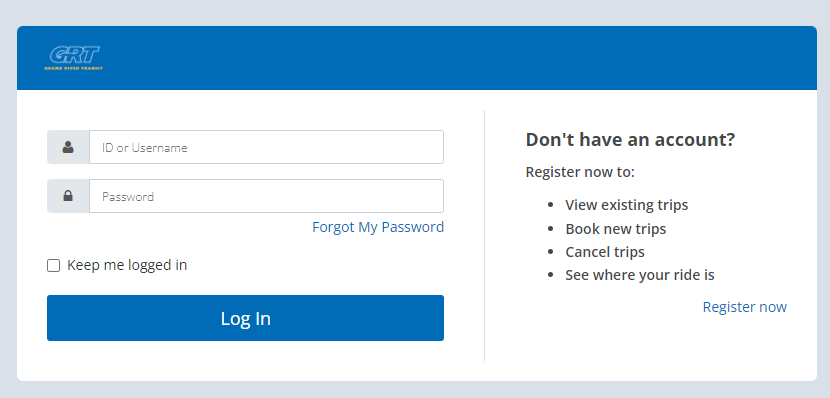
Go to mplus.grt.ca and select Register now. You'll be prompted to enter your MobilityPLUS ID, your last name and an email address.
Once entered you will receive a confirmation email. Click the link in the email to finish setting up your account.
Check seat type
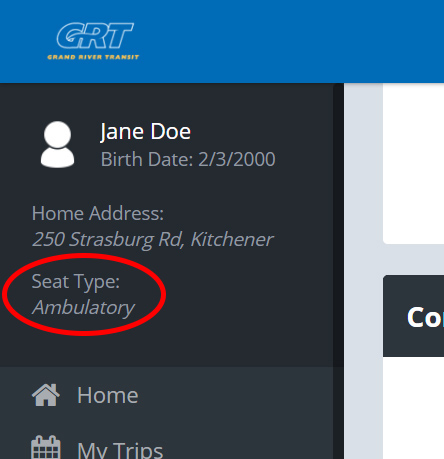
Before booking a trip, confirm your seat type. This refers to the type of mobility aid that you use when riding MobilityPLUS. You can find your seat type in the top left corner of the home page.
The seat types:
- Ambulatory - you can walk onto the vehicle and sit in a regular seat
- AM needs lift - you can sit in a regular seat, but need the lift to board
- Scooter
- Wheelchair
- XLarge Wheelchair/Broda
- XL-Long Load
Make sure that your seat type is correct so we can be sure that the vehicle has space to pick you up when it arrives. If your seat type is incorrect or needs changing, call 519-585-7597.
Book a trip
- Click on Book a Trip.
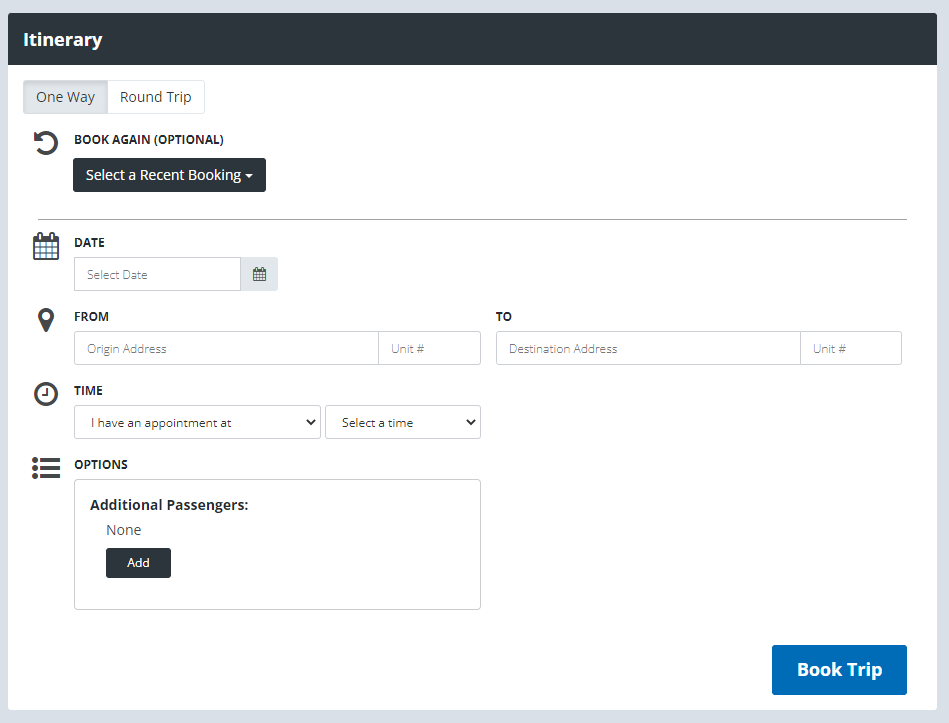
- Enter your starting address and the address of your destination. You’ll see the location displayed on the map to the right.
- Addresses of previously booked rides cannot be updated. You will have to cancel the trip and rebook with the correct address or call 519-744-2241.
- Select the time you want to be picked up or the time you want to be dropped off at your destination.
- If you want a return trip, enter the time you want to be picked up. If you don’t need a return trip, check the One Way box.
- If you're having difficulty booking a return trip, trying booking it as two one-way trips by checking the One Way box.
- If you get an error message that GRT was unable to book your trip. Unfortunately, we don’t have any vehicles available for the time slot you’re trying to book. Try booking at a different day/time, or call 519-744-2241.
- You can add or remove a guest or your Transit Support Person to your ride by updating the additional passenger information.
- Click Book Trip.
If a vehicle is available, you’ll see a confirmation window asking you to confirm the details of your trip. If there is no vehicle available at the time you requested to book, you’ll see a message notifying you that your trip could not be scheduled.
Same-day trips can only be booked with a minimum of 3 hours notice. A same-day trip cannot be requested after 6:15 p.m.
If you need to modify a trip, please call 519-744-2241.
If you would like a delegate to book trips on your behalf, please fill out the delegate consent form.
View upcoming trips
Click on My Trips.
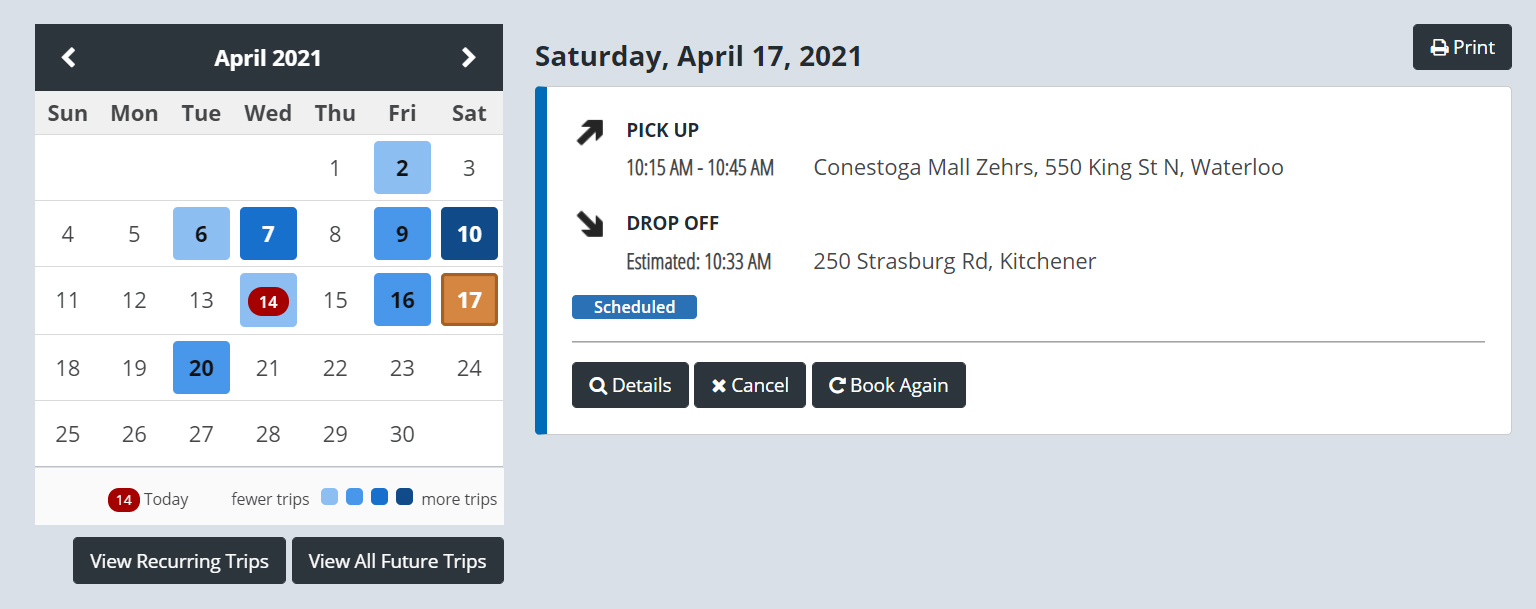
Days that you booked or MobilityPLUS dispatched booked for you will be highlighted in blue on the calendar. Click on the blue square to see the trips booked for that day or click View All Future Trips to see all your upcoming trips.
Cancel a trip
Go to My Trips.
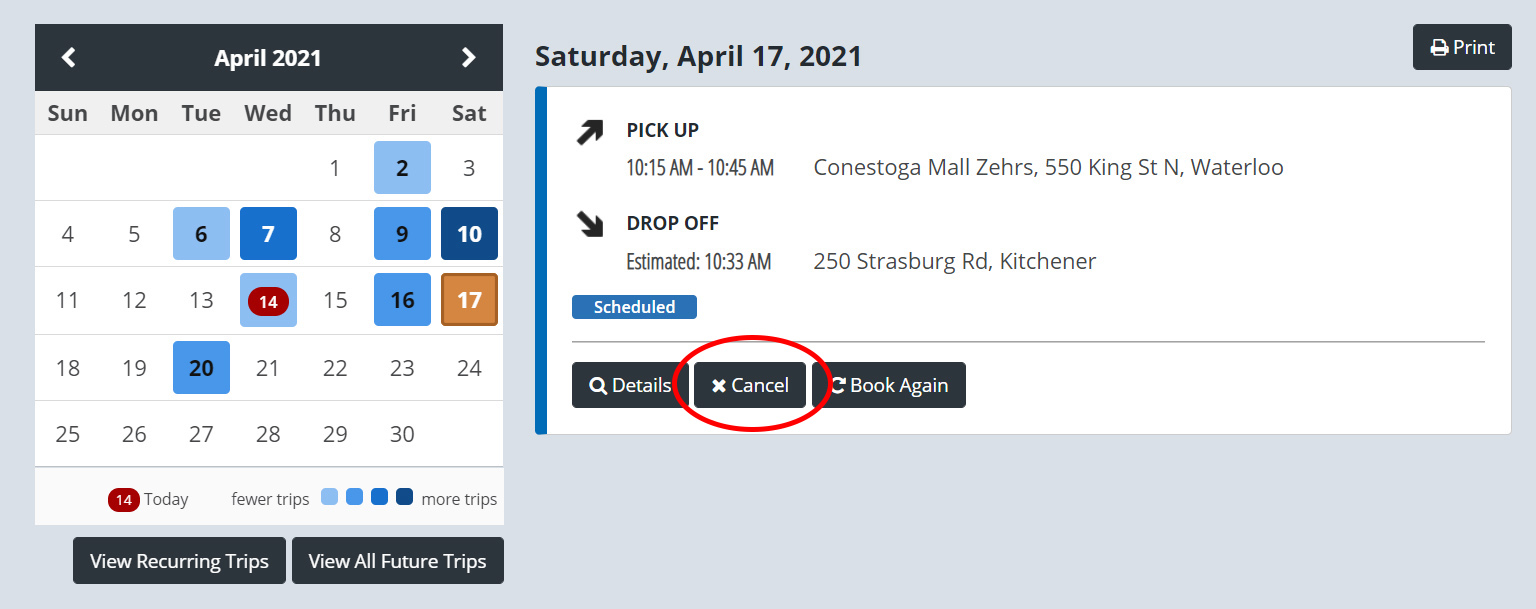
Find the trip and click the Cancel button. You’ll see a window prompting you to confirm you want to cancel that trip.
You cannot cancel online if it is less than 3 hours from the start of your pickup window. Please call 519-744-8570 to cancel.
If you cancel less than 2 hours before the start of your pick up window, it is considered a Late Cancel.
Change the password
Click on Profile.
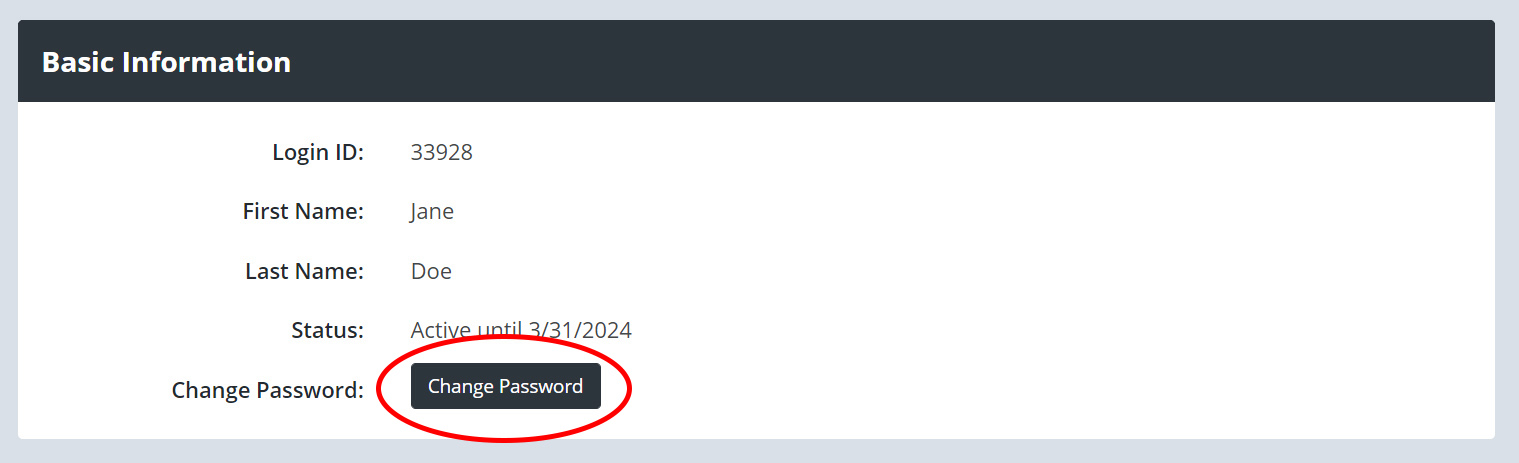
Under Basic Information, click on Change Password.
To reset your password, click on the Forgot My Password link on the login page.
If you have entered your password incorrectly 3 times, your account will lock. Please select Forgot My Password to reset your password and unlock your account.